
File Search
Vicinae integrates with your filesystem in order to provide you with snappy file search.
This page describes how it works and how to get the most out of it.
Environment support
Vicinae uses the best file search backend available on each platform:
| Platform | Backend |
|---|---|
| Linux | Vicinae's own file indexer |
| macOS | Spotlight |
| Windows | Everything if it is running, Windows Search otherwise |
Search files
You can search files in one of two ways:
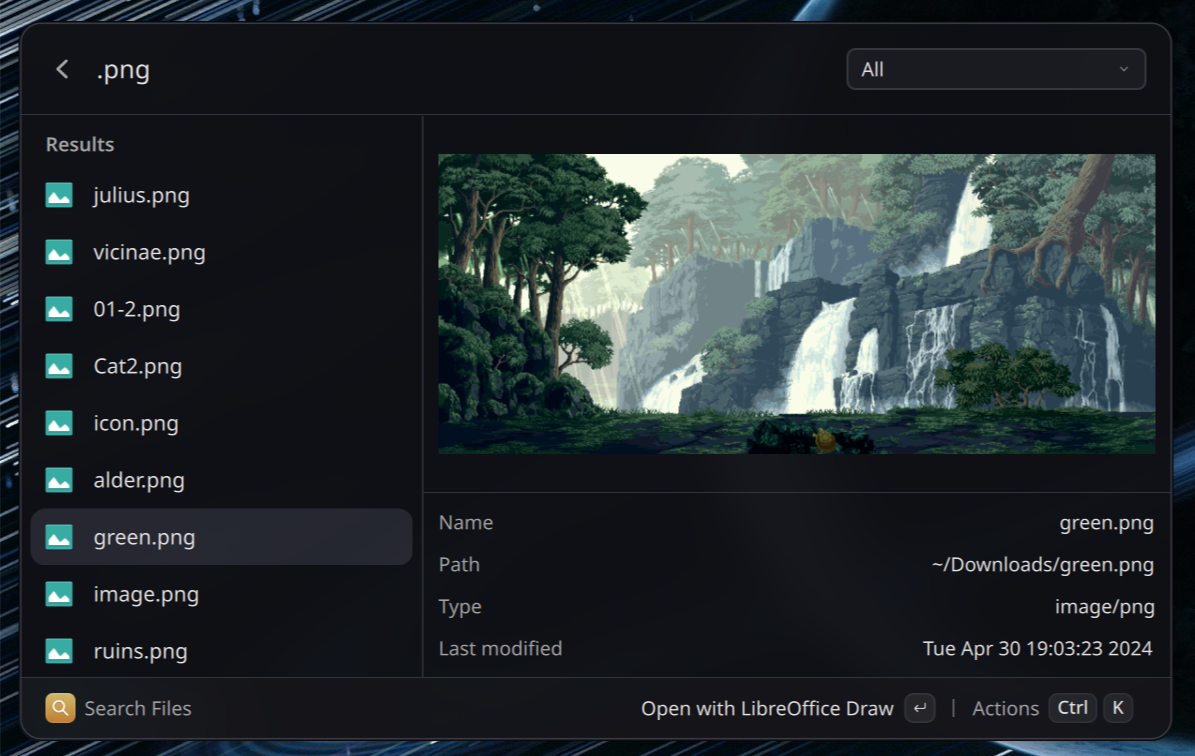
- Using the dedicated Search Files command. With an empty query, it shows your recent files. Results can be filtered by category (documents, images, etc.) and come with a preview of the file's content.
- From the root search, if
search_files_in_rootis enabled in the settings. Root file search is asynchronous, so expect a slight delay before file results show up.
Linux
Vicinae ships its own file indexer, which runs in the background as a separate process.
On first startup, it runs a full scan of the configured search paths. After that, the index is kept up to date by watching for filesystem changes and running lightweight incremental scans.
It is expected for Vicinae to use a lot of CPU during the initial scan, as the priority is to build the base index as fast as possible.
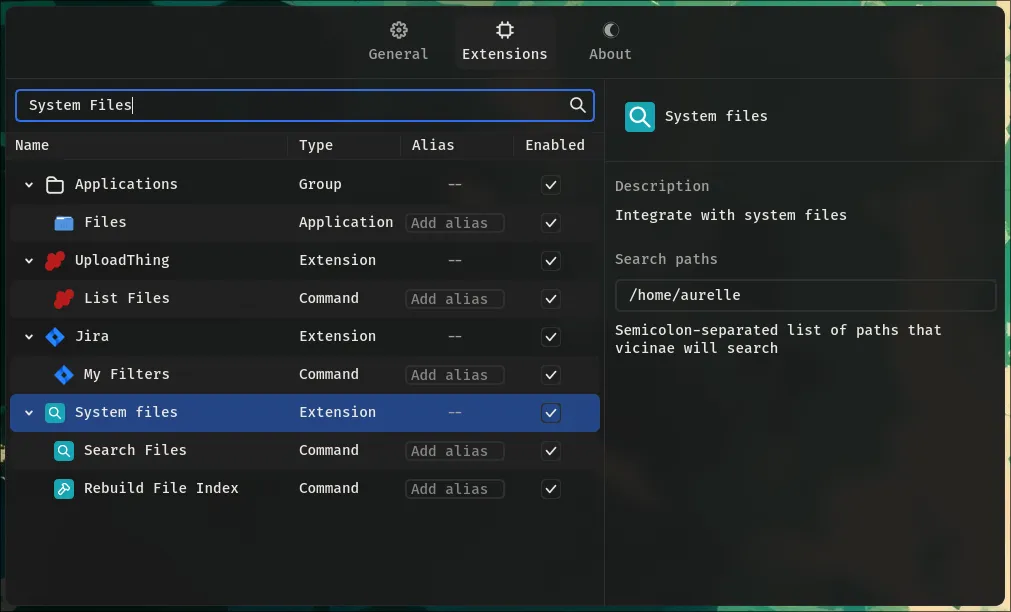
The following can be changed from the file search extension settings:
- Enabled: turning it off stops the indexer entirely, and file search becomes unavailable.
- Search paths: directories to index. Defaults to your home directory.
- Excluded search paths: directories to skip.
macOS
Spotlight owns the index, so there is nothing for Vicinae to build: it only queries it.
Windows
By default, Vicinae uses Everything if it is running and falls back to Windows Search otherwise. You can force one or the other with the Search backend setting.
If you run a non-default Everything instance (e.g. the 1.5 alpha, which runs as 1.5a), set its name in the Everything instance setting.
CLI
Indexed files can also be queried from the command line:
vicinae fs query "my query"
Run vicinae fs query --help for the available options (limit, category, JSON output).