
Browser Extension
Vicinae can connect to your browser to search, focus and delete your browser tabs, alongside other cool integrations. This page describes how to get started and highlights the most useful features.
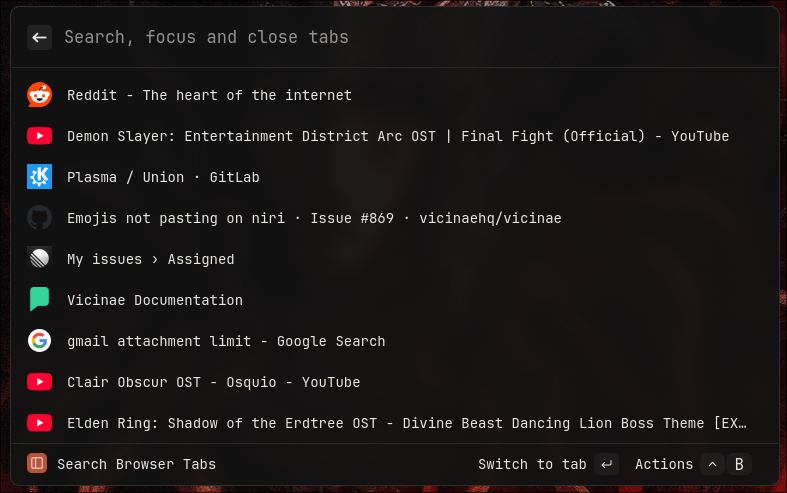 Tabs are searchable directly from root or from within the dedicated command
Installation
Prerequisites
If you installed vicinae from the AUR, using the script (as root) or from source, the prerequisites below should automatically be handled for you. When possible, these installation mediums automatically generate and install the required native host manifests on your system.
Known exceptions are:
- AppImage install that was not performed as root
- Any other esoteric packaging method that does not use the cmake install target
Your browser must be able to find a com.vicinae.vicinae.json manifest whose path references a valid vicinae-browser-link binary. Common system-wide locations on Linux are:
- Chromium:
/etc/chromium/native-messaging-hosts/ - Google Chrome:
/etc/opt/chrome/native-messaging-hosts/ - Firefox:
/usr/lib/mozilla/native-messaging-hosts/
If you installed the browser extension manually, make sure the manifest allows the ID of your installed extension.
NixOS and Home Manager
When using the Vicinae Home Manager module, native messaging is configured automatically for Google Chrome or Firefox that (only browsers managed by Home Manager):
programs.google-chrome.enable = trueprograms.firefox.enable = true
The corresponding programs.vicinae.enableChromeIntegration and programs.vicinae.enableFirefoxIntegration options are enabled by default.
For another Chromium-based browser managed by Home Manager, use the browser's nativeMessagingHosts option. For example, with Brave:
{ config, ... }:
{
  programs.brave = {
    enable = true;
    nativeMessagingHosts = [ config.programs.vicinae.package ];
  };
}
If the browser is not managed by Home Manager, link the manifest into its per-user native messaging directory instead. For example:
{ config, ... }:
let
  vicinaePackage = config.programs.vicinae.package;
in
{
  home.file.".config/brave/NativeMessagingHosts/com.vicinae.vicinae.json".source =
    "${vicinaePackage}/etc/chromium/native-messaging-hosts/com.vicinae.vicinae.json";
}
For a system-wide NixOS setup without Home Manager, declare the manifest at the path expected by the browser. For example, with Chromium:
{ inputs, pkgs, ... }:
let
  vicinaePackage = inputs.vicinae.packages.${pkgs.stdenv.hostPlatform.system}.default;
in
{
  environment.etc."chromium/native-messaging-hosts/com.vicinae.vicinae.json".source =
    "${vicinaePackage}/etc/chromium/native-messaging-hosts/com.vicinae.vicinae.json";
}
For Firefox enabled through NixOS, add the package to programs.firefox.nativeMessagingHosts.packages.
From web extension stores
The most straightforward way to get the extension is to download it directly from the official extension stores:
- Chromium based browsers: chrome extension store
- Firefox based browsers: mozilla extension store
[!IMPORTANT] On Firefox based browsers, by default, the Vicinae extension won't have 'Run on Sites with restrictions' permisson. That can interfere with, as an example, the Bitwarden password manager Firefox extension's auto-fill function on sites flagged for 'restricted' permissions, like reddit. If you would like to allow that:
- navigate to 'about:addons' and click on the three dot menu to the right of Vicinae
- select 'Manage', select 'Allow' to the right of 'Run on Sites with restrictions', close and reopen your browser.
More information on Mozilla's restricted domain policy here.
Manual
Go through the instructions in this README file to install the browser extension and its requirements. This documentation is currently rudimentary and mostly intended for advanced users. Installing from the official browser stores will be the user friendly way to set this up.
How it works (simplified)
Vicinae makes use of the native messaging browser API to spawn a special worker process when the browser extension is started that is responsible for mediating communication between the browser extension and the vicinae server. From there both exchange messages as needed, to notify changes (e.g browser tab changes) or request actions (e.g focus or close a tab).
Noteworthy features
Create shortcut from active tab
A common use case for the browser integration is to create a Vicinae shortcut from the currently active tab.
Using the Create Shortcut from Active Tab command, you can do this in two steps without having to manually open the Create Shortcut command and copy the link.
Transform tab to shortcut
Similar to the feature described above, but through an action made available to each searchable tab. Pressing shift+return will automatically switch to the Create Shortcut view for you.
Privacy policy
All data stays local. Everything is open source, and can be fully audited.